
SIP Intercom Calling to multiple targets (subscriber) by the touch of a button
Introduction
It's possible to use a variaty of devices (sip endpoints) to perform a post-dial action activating a call group or call sequence. This use case describes how to configure a call sequence and a call group by the press of a button.
Preconditions
For this use case a fully configured CoCoS sip configuration needs to be available. This section only describes how to link a button action to an call group or call sequence.
Step by step implementation
To configure this use case, follow these steps:
-
Create a call group or call secuence.
- Configure the call by action.
1. Create the call group or call sequence.
To create a call group or sequence please read on the the following HOW-TO articles matching the requirements
|
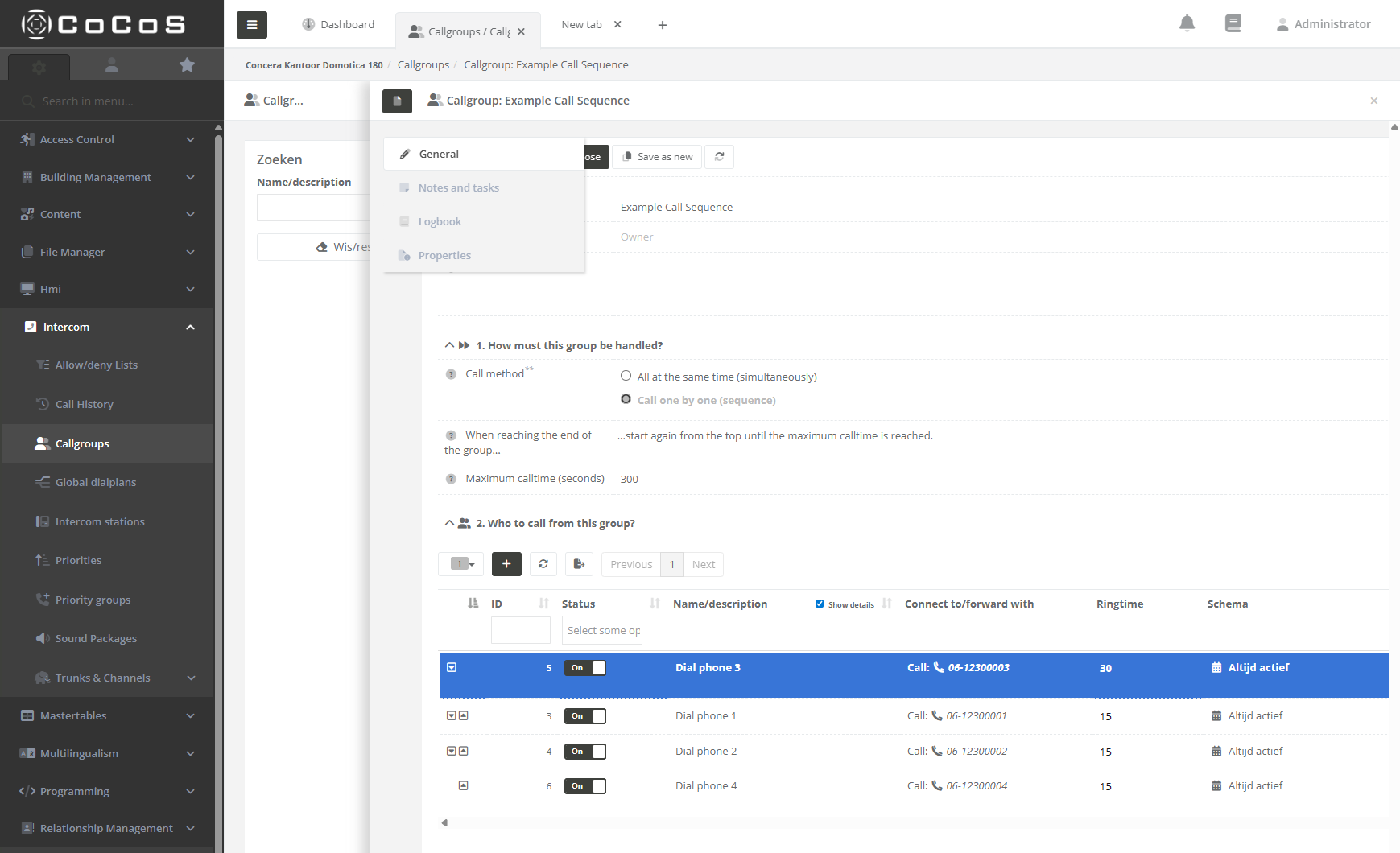
How to create a call sequence (Dial to multiple numbers)
After configuring a call sequence the sequence should relate to the adjacent screenshot |
|
|
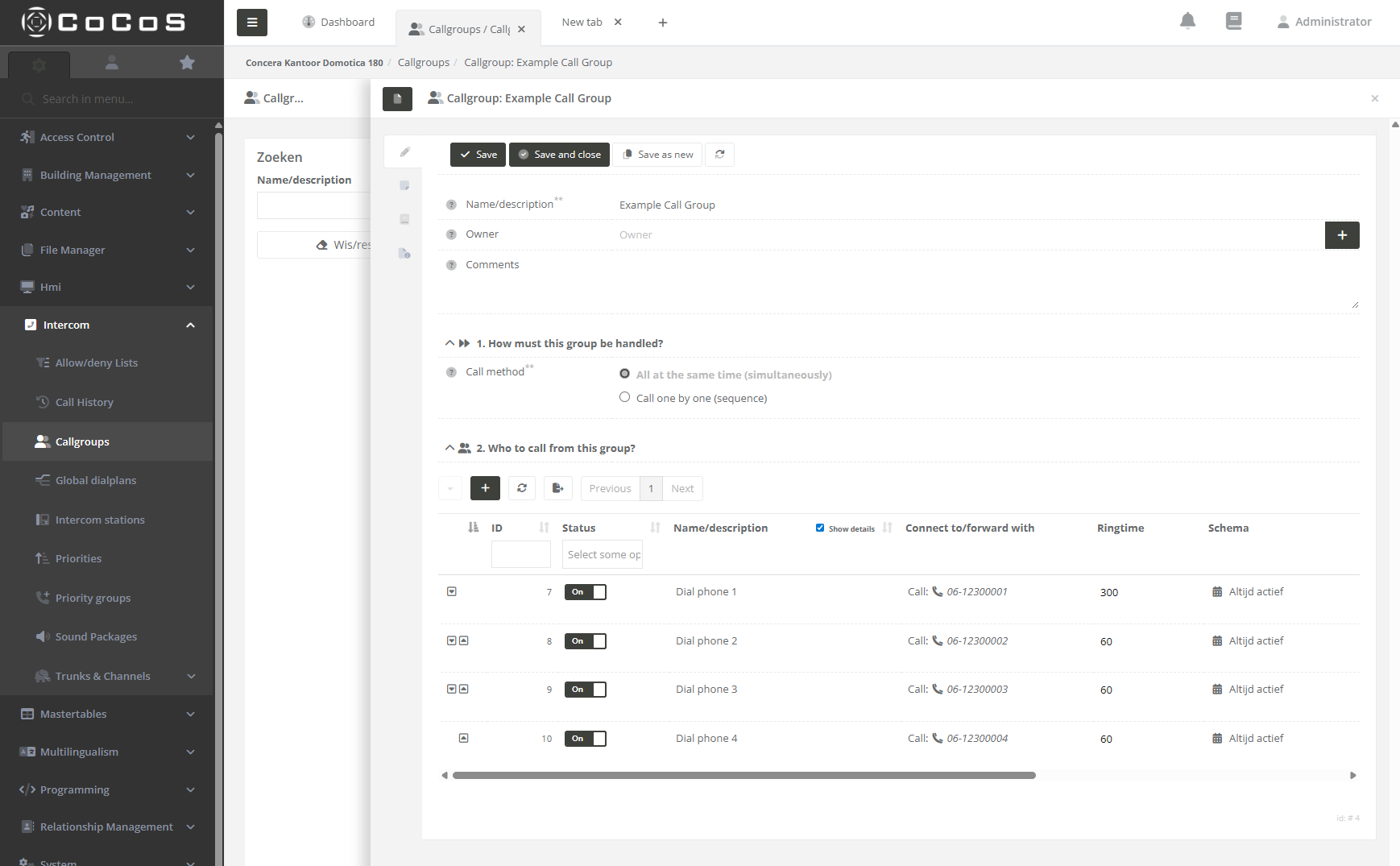
How to create a call group (Dial to multiple numbers)
After configuring a call sequence the sequence should relate to the adjacent screenshot |
|
2. Configure the call by action
2.1 Trigger a dialplan using a call group or sequence.
3. Test the configuration
Testing the configuration is currently only possible—when using a SIP setup—by simulating a press of the 0 key.
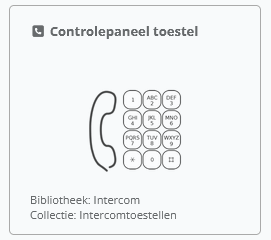
This can be done via the dashboard widget. Add this widget to a dashboard to begin testing.
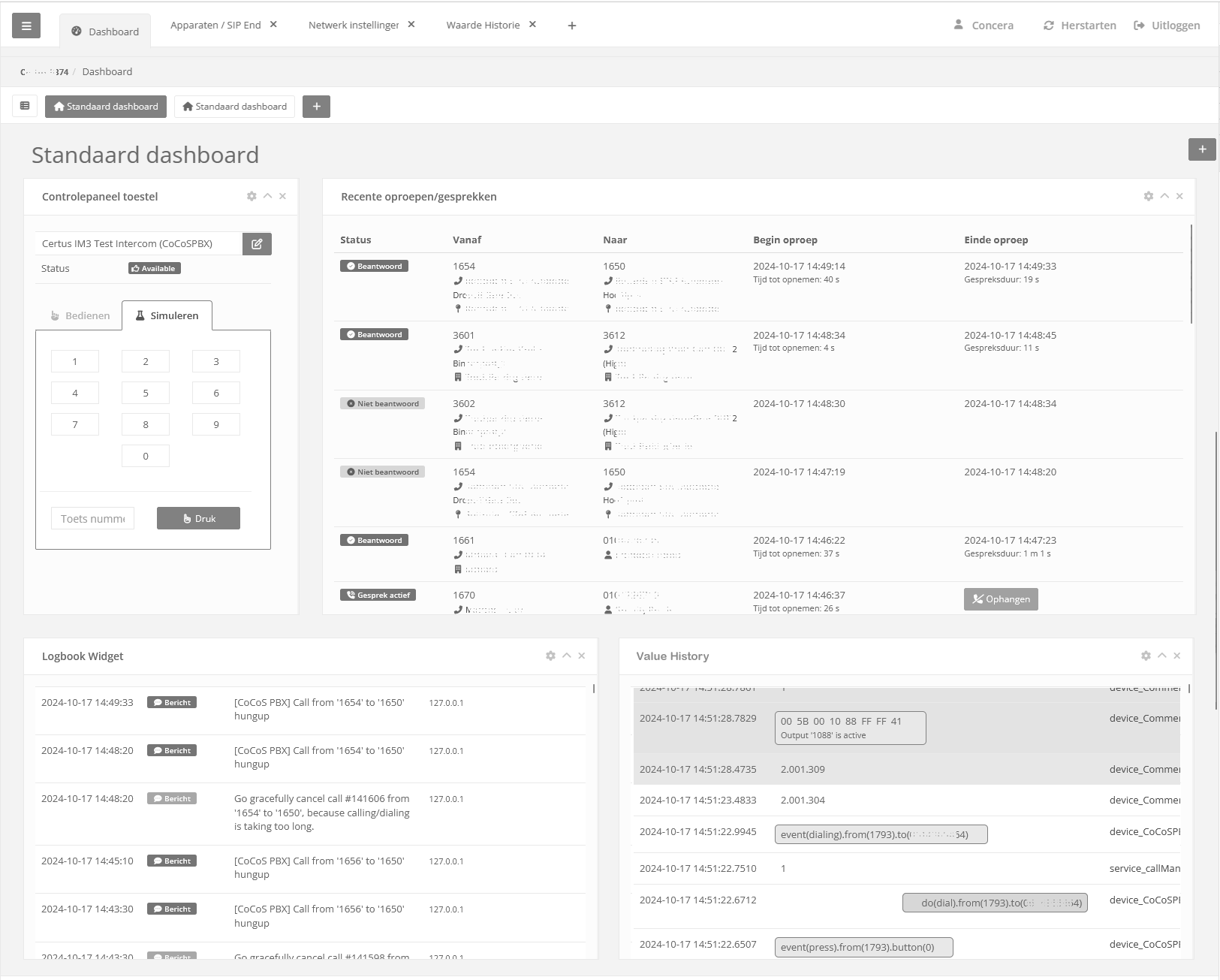
Below is an example where a "control panel device" has been placed, along with the call history, the logbook, and the value history.
By simulating a press of the 0 key, this action becomes visible in the value history. It is also displayed in the call logging, and - if applicable - related logbook entries concerning the call will appear.
Everything can be tested directly from the dashboard. The action of post-dialing using a DTMF tone (e.g., to start a script) is also visible, provided a corresponding log entry is written in the logbook. The DTMF tone itself also appears in the value history.
4. Troubleshooting
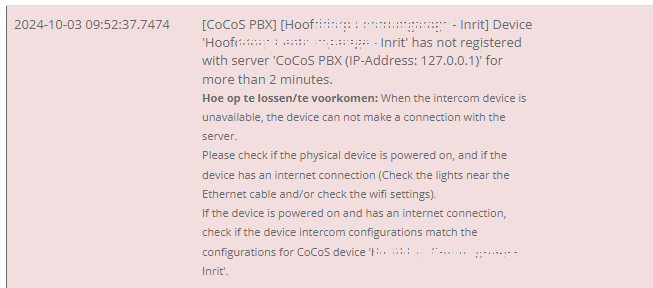
"Error + Available" status bij Sip-toestel in CoCoS
|
Symptoom:
Fix: Check the logbook and folow the instructions to fix the error.
|
|

This document is automaticly rendered from the CoCoS Knowledgebase. To gain access to all CoCoS documentation at knowledgebase.cocos.software please contact you CoCoS reseller.